Create Collections
Creating collections in Smart Collections Builder is where the magic happens. With our advanced rule system, you can build collections that automatically include exactly the products you want—no manual tagging required.
Before You Start
Before creating your first collection, it helps to have a plan. Consider the following questions
What products do you want to include?
Think about the common attributes they share (tags, price range, product type, etc.).
What logic makes sense?
Do ALL conditions need to match, or just ANY of them?
Do you need complex rules?
If so, you'll want to use the Combination rule type.
Step-by-Step: Creating a Collection
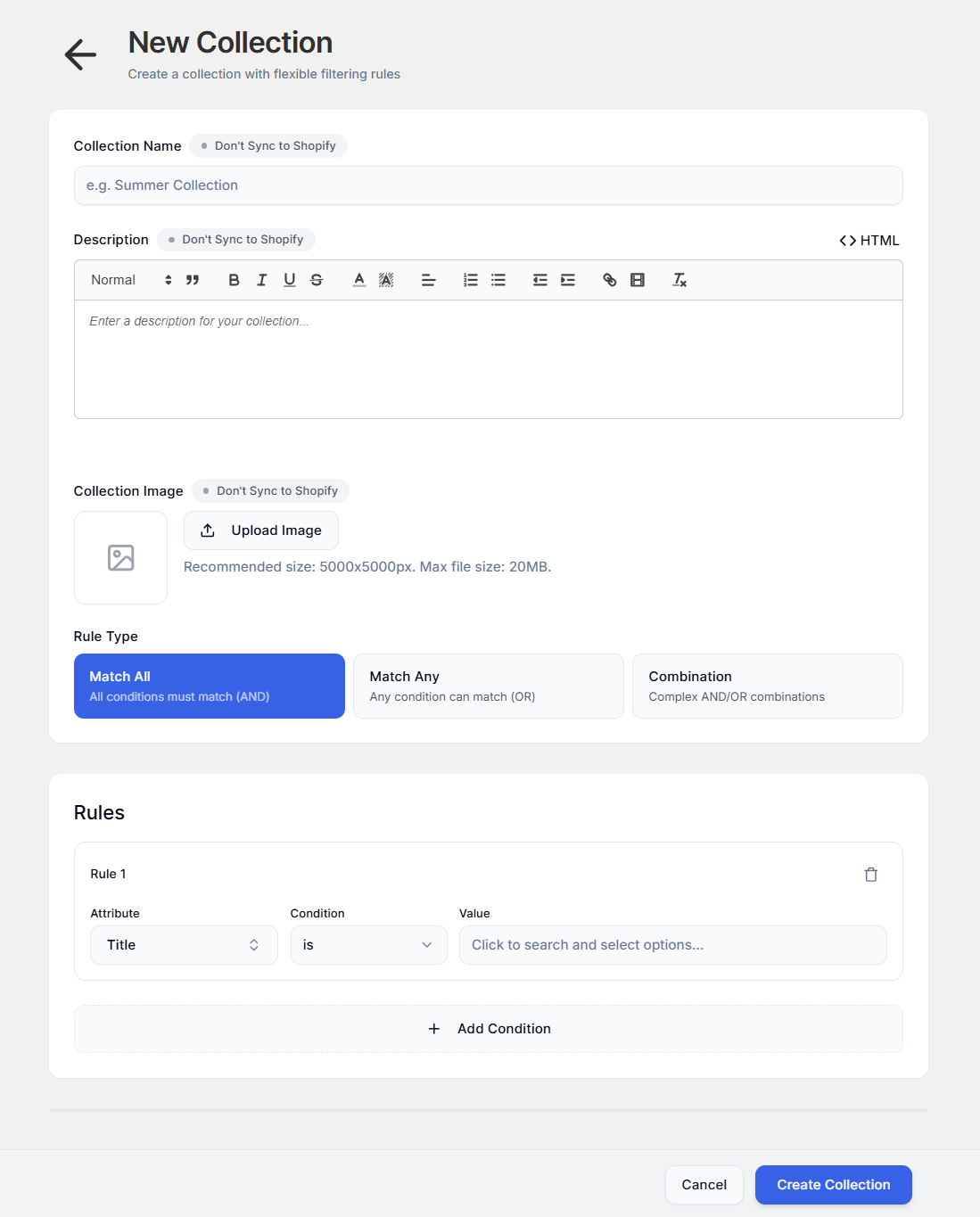
Step 1: From the dashboard, click New Collection to start.
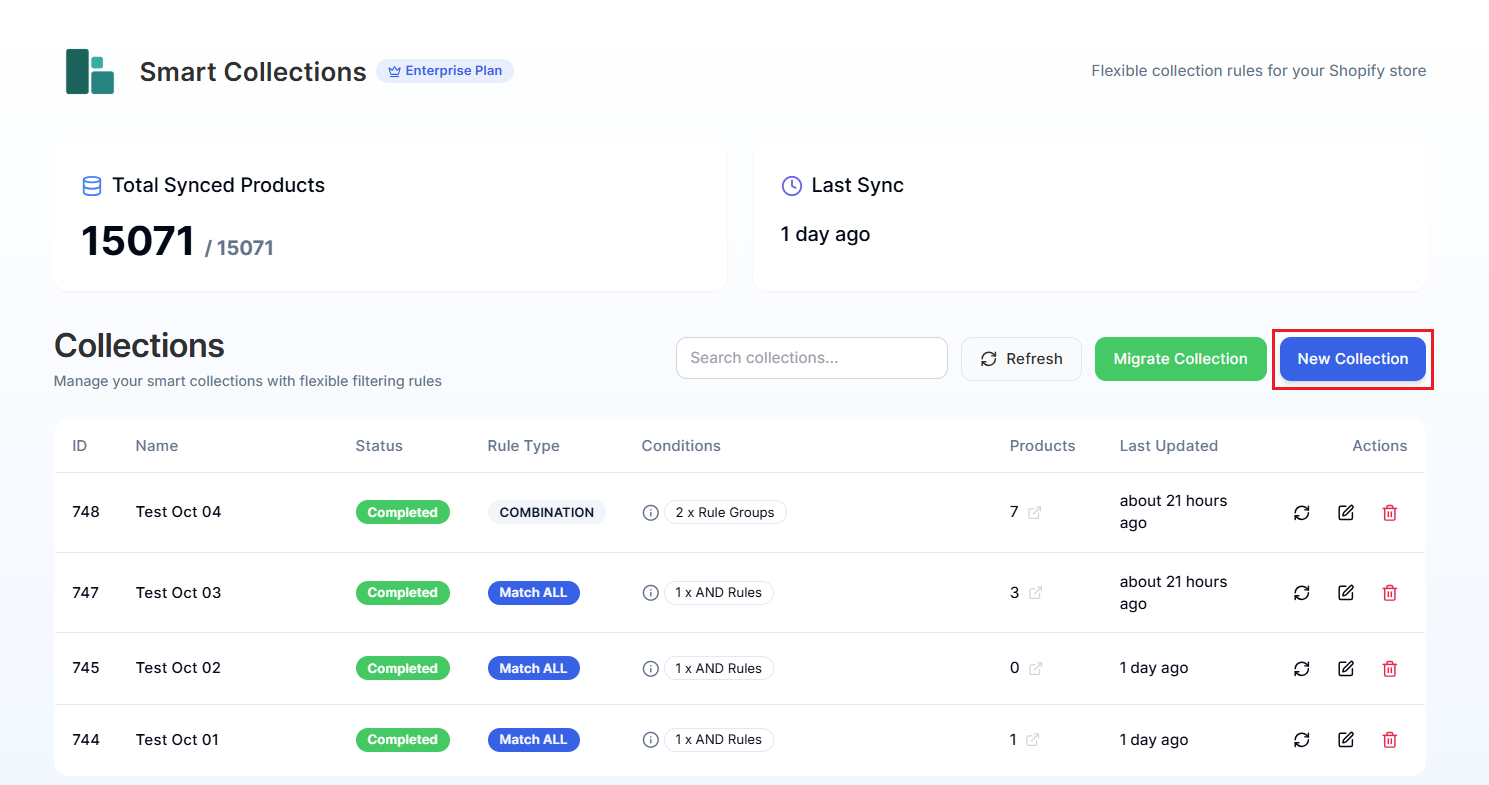
This opens the collection creation page.
Step 2: Enter a Collection Name that makes it easy to identify and manage later.

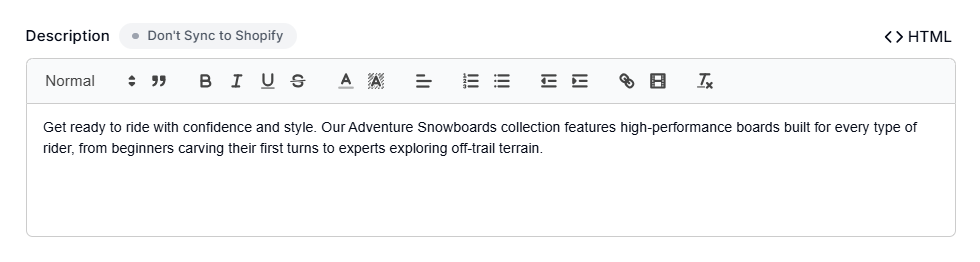
Step 3: Add a Description to summarize what the collection is about. This description can appear on your storefront, so make it customer-friendly!
Pro Tip: The Description box supports rich text formatting. You can add headings, bold text, links, and more. Check out Rich Text Editor to learn all the formatting options.
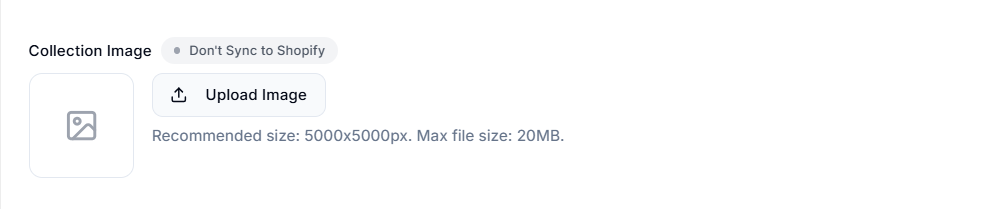
Step 4: In the Collection Image section, click Upload Image to add a visual for the collection.
Syncing to Shopify
By default, the collection name, description, and image are managed within the app only. If you want these details to sync back to your Shopify admin, toggle each setting from Don't Sync to Shopify to Sync to Shopify.
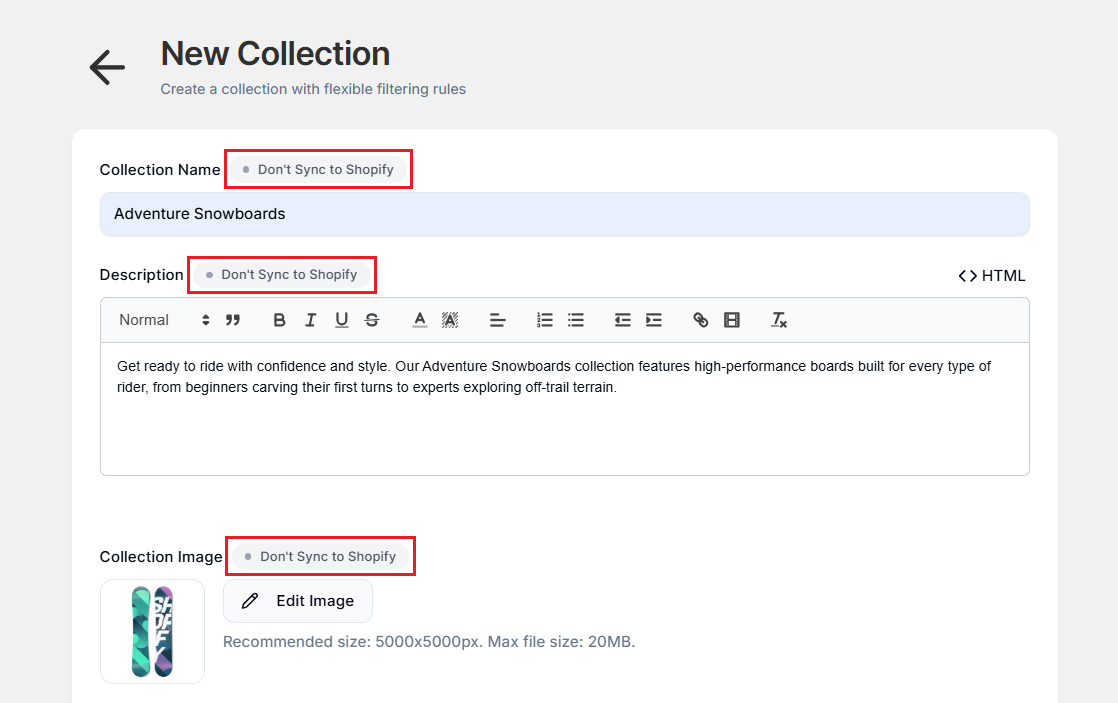
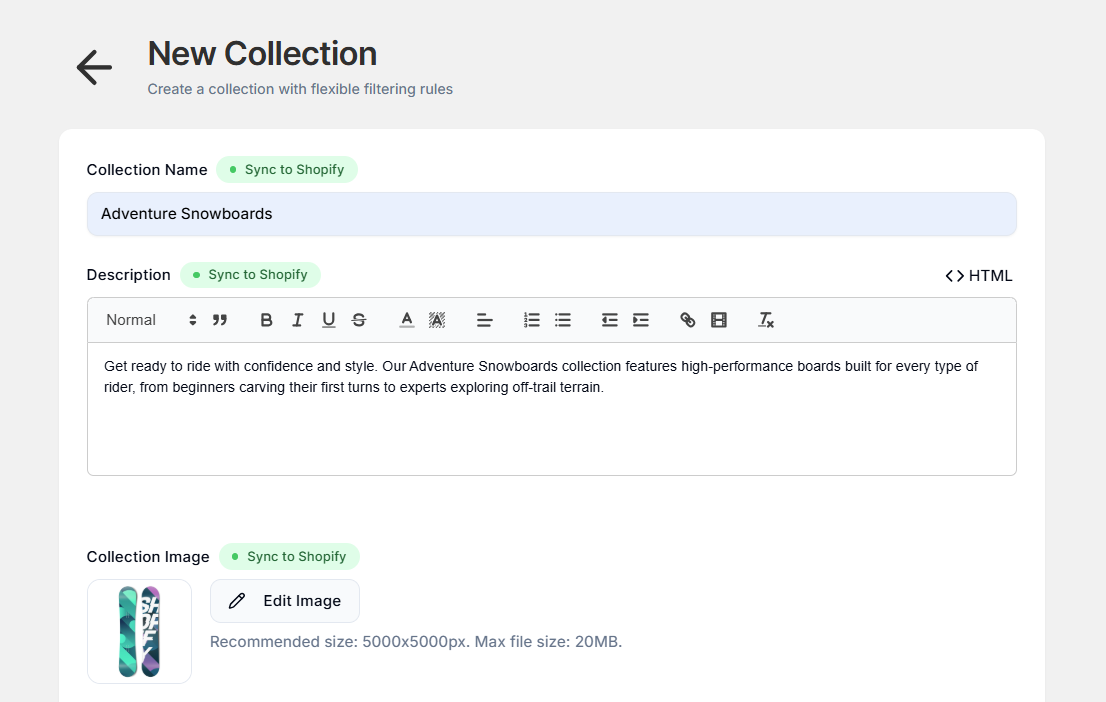
Step 5: Choose a Rule Type that determines how your conditions work together:
| Rule Type | Logic | When to Use |
|---|---|---|
| Match All | AND logic | Products must match ALL conditions |
| Match Any | OR logic | Products can match ANY condition |
| Combination | AND/OR mix | Complex rules with grouped conditions |
For a deeper dive into how each works, see Rule Types.

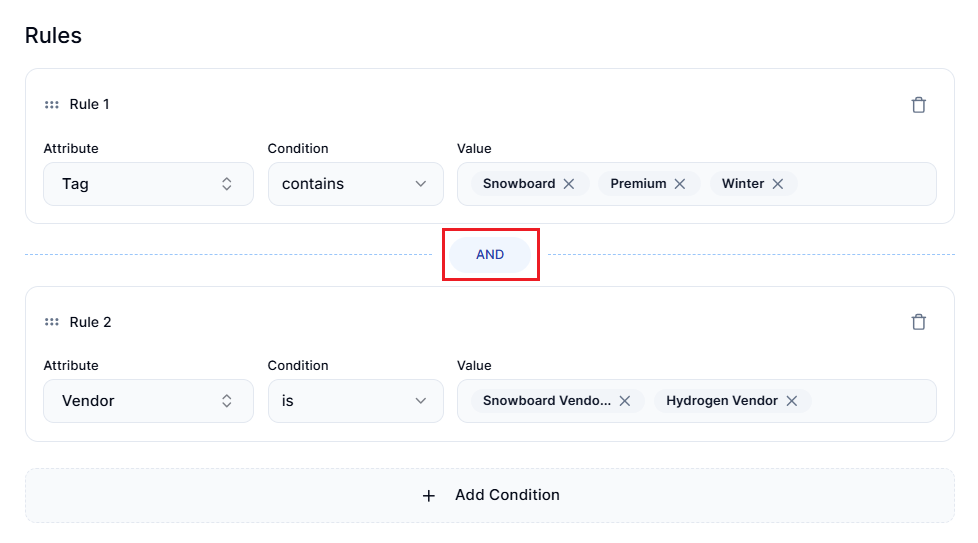
Step 6: Now for the fun part—setting up Rules! Each rule has three parts:
- Attribute: What product property are you checking? (Title, Tag, Price, Metafield, etc.)
- Condition: How should it be compared? (is, contains, starts with, greater than, etc.)
- Value: What specific value are you looking for?
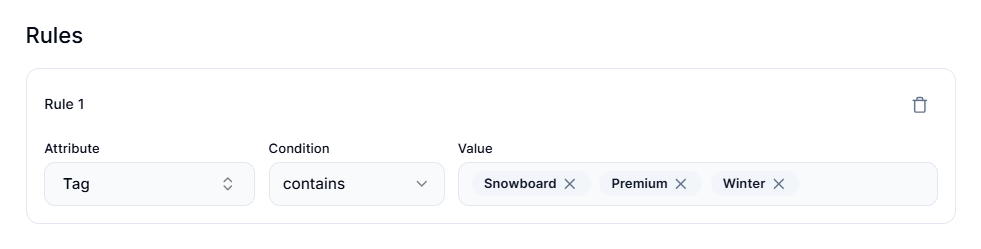
For a complete guide to all filtering options, check out Filter Products.
Adding Multiple Rules
Need more than one rule? Click + Add Condition to add as many as you need. The logic between rules depends on the Rule Type you selected:
- Match All shows AND between rules.
- Match Any shows OR between rules.
- Combination lets you create groups with mixed logic.
Pro Tip: While there's no hard limit on rules, we recommend keeping it to 15 rules or fewer per collection for easier management.
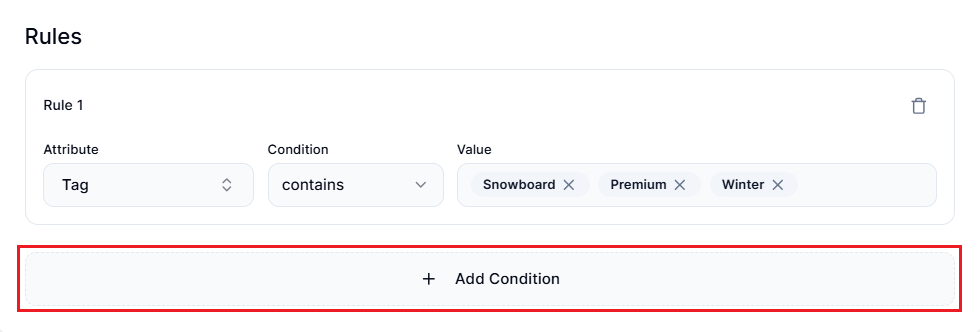
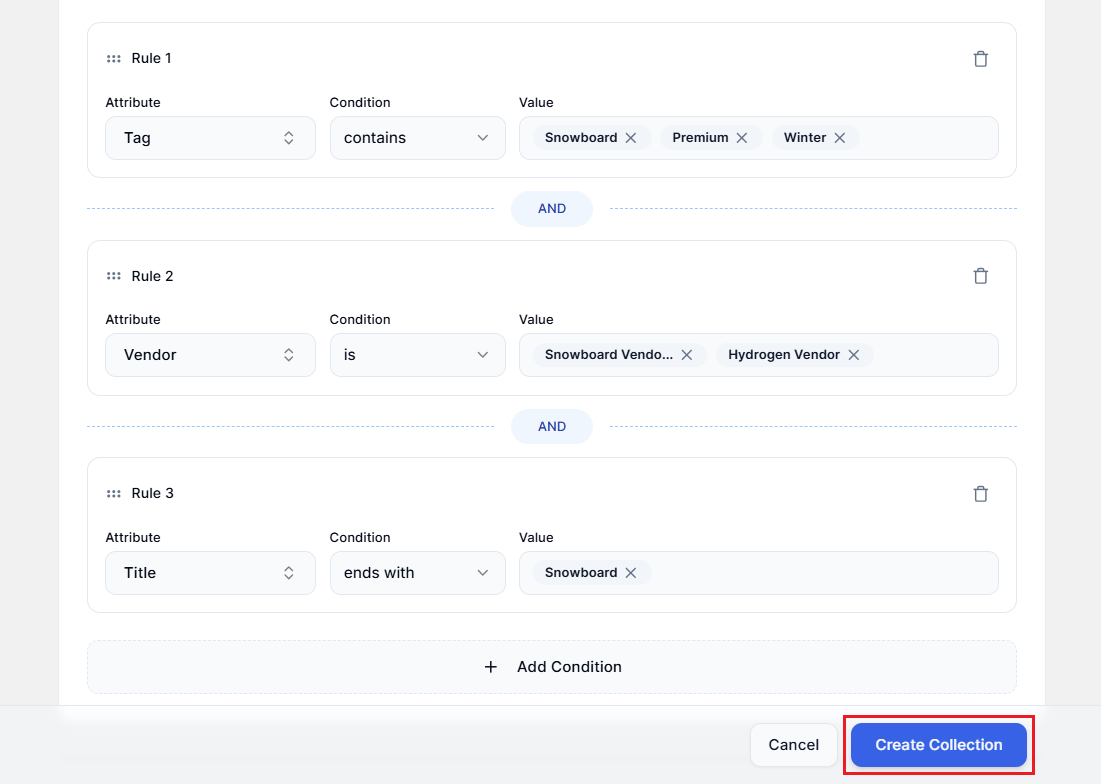
Step 7: Once you've set up your rules, click Create Collection.
After Creating the Collection
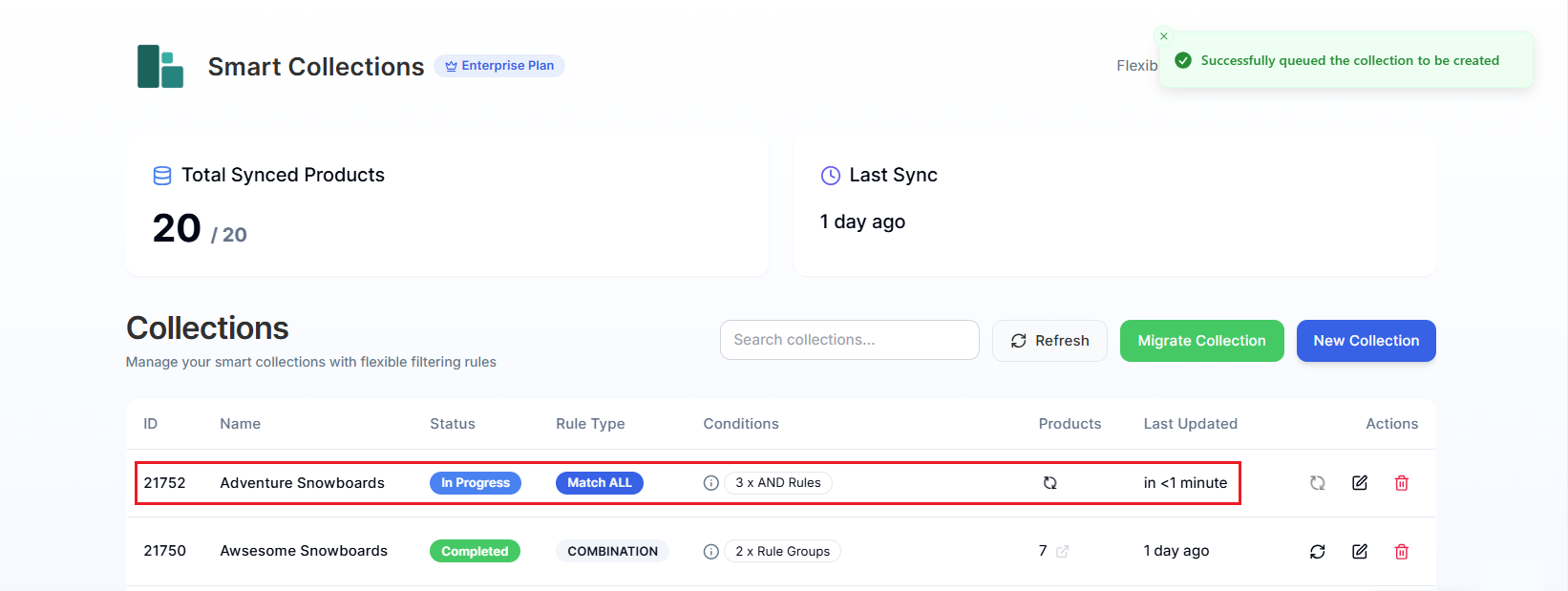
You're taken back to the dashboard, where you can watch the collection being built:
- Status shows as In Progress while the app processes products.
- Depending on your catalog size, this might take a few minutes.
- Once complete, the status changes to Completed.
Testing Collections Before Going Live
Want to test your rules without making the collection visible to customers? Here's a workaround:
- Create the collection in Smart Collections Builder as normal.
- Once it's created, go to the collection in your Shopify admin.
- Set the collection to unpublished (remove it from sales channels).
- Review the products to make sure your rules worked as expected.
- When you're satisfied, publish the collection to make it live.
This lets you verify everything looks right before customers can see it!
Example: Creating a "Premium Winter Gear" Collection
Let's walk through a real example. Say you want to create a collection of premium winter products priced over $100:
- Collection Name: Premium Winter Gear
- Rule Type: Match All (you want products to match ALL conditions)
- Rules:
- Tag → contains → "Winter"
- Tag → contains → "Premium"
- Price → greater than → 100
This creates a collection containing only products that are tagged as both Winter AND Premium AND cost more than $100.
What's Next?
- Edit the collection later: Edit Collections
- Manually refresh products: Resync Collections
- View collection in Shopify: View Collection Products
Have questions about creating collections? We're here to help! Reach out via live chat or email us at support@bevycommerce.com.