Edit Collections
Made a collection that needs some tweaking? No problem! Smart Collections Builder makes it easy to edit your collections whenever you need to adjust the rules, update the description, or change the image.
When to Edit a Collection?
You might want to edit a collection when:
- Your merchandising strategy changes.
- You need to add or remove rules.
- You want to update the description or image for a new season.
- Products aren't matching as expected (time to refine those rules).
How to Edit a Collection?
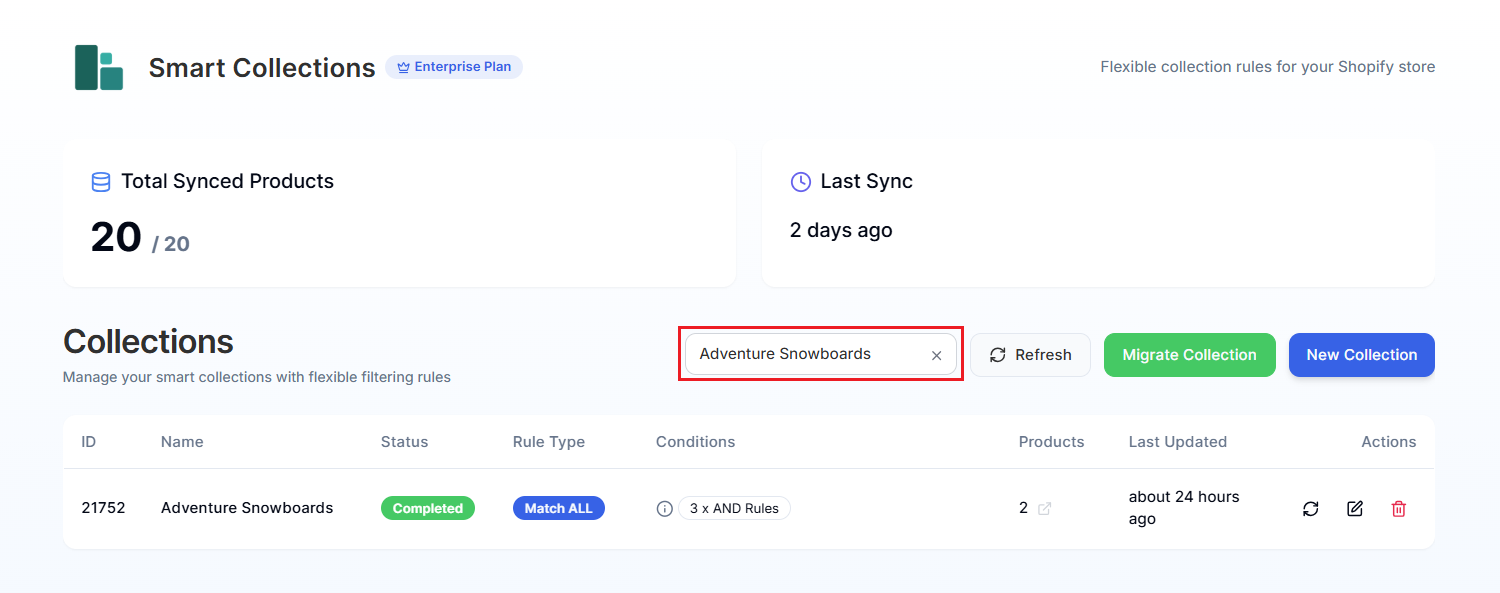
Step 1: On the app dashboard, find the collection you want to edit in the table.
Pro Tip: Have lots of collections? Use the Search collections box to find it by name quickly.
Step 2: Click the Edit icon (pencil) in the Actions column.
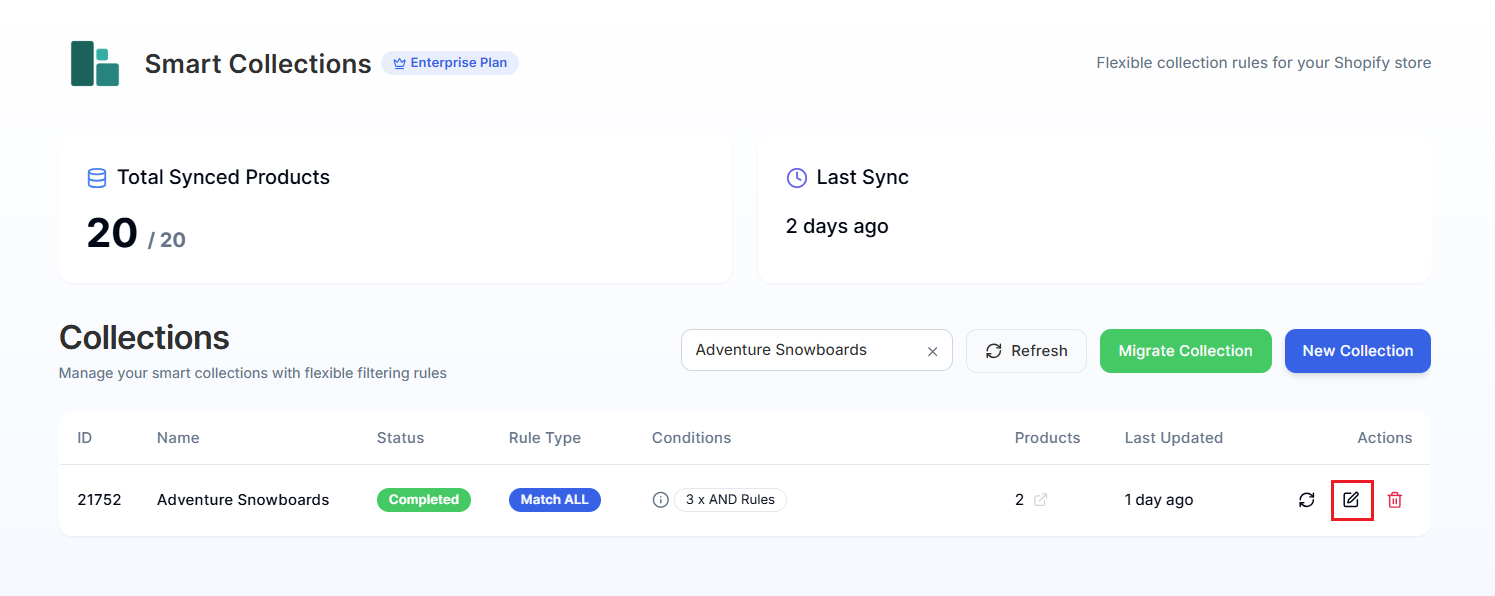
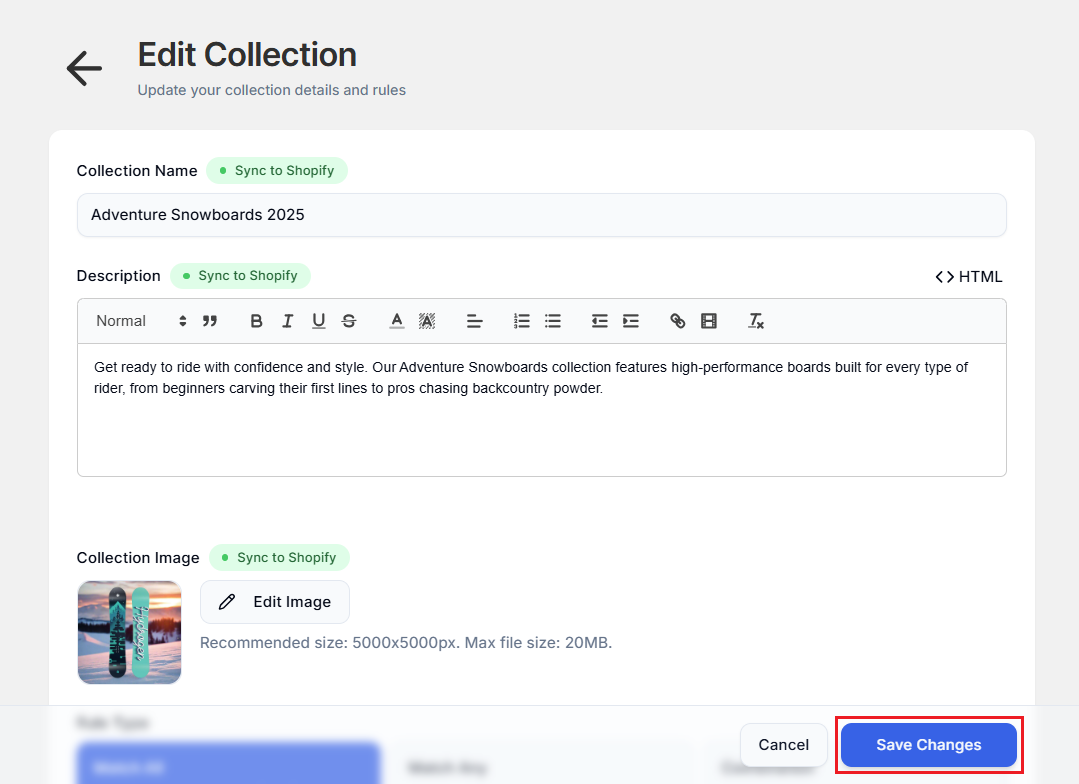
This opens the Edit Collection page, which looks just like the creation page with all your existing settings loaded.
Step 3: Make changes to any of the following:
- Collection Name: Rename the collection.
- Description: Update the text and formatting.
- Collection Image: Upload a new image or remove the current one.
- Rule Type: Switch between Match All, Match Any, or Combination.
- Rules: Add, remove, or modify conditions.
Editing Rules
When editing rules, you can:
- Change values: Update the attribute, condition, or value of any rule.
- Add rules: Click + Add Condition to include more filters.
- Remove rules: Click the delete icon next to any rule you don't need.
- Reorder rules: In Combination mode, drag and drop to rearrange.
Step 4: When you're happy with your changes, click Save Changes.
After Saving Changes
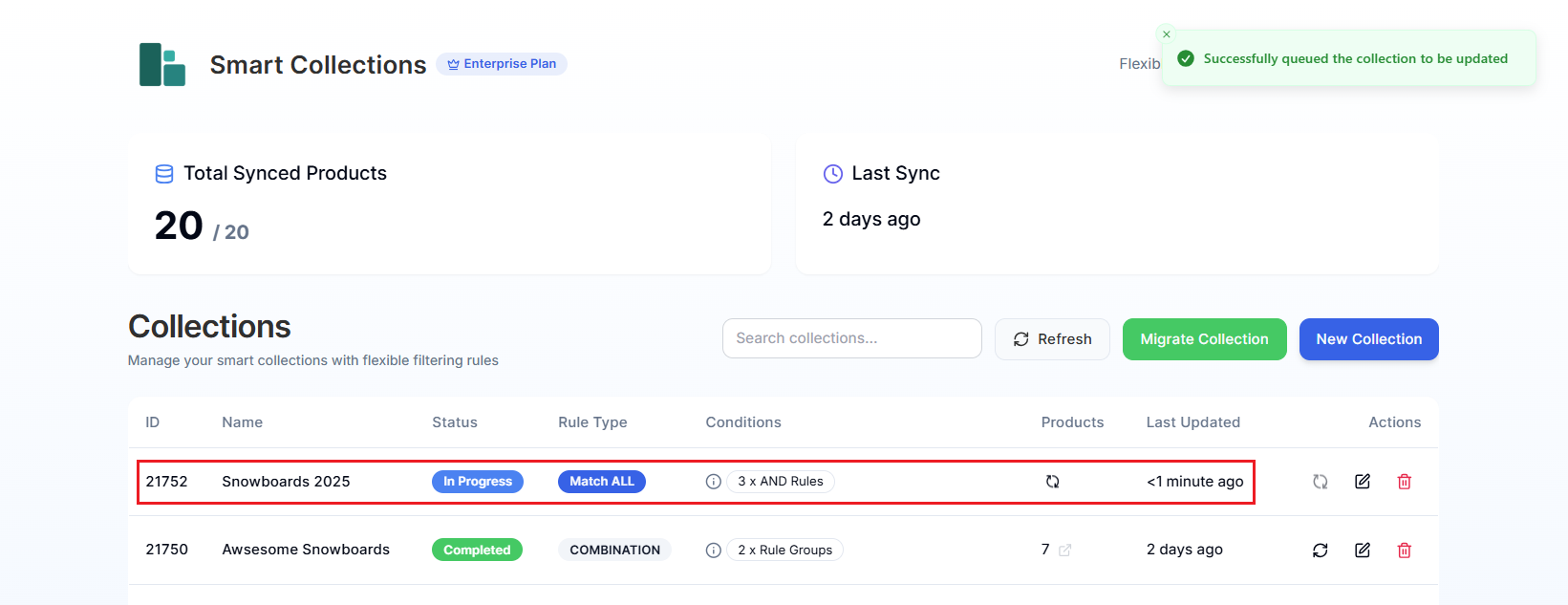
The app takes you back to the dashboard, where the collection starts resyncing:
- Status shows as In Progress while products are re-evaluated.
- This may take a few minutes for larger catalogs.
- Once complete, the status changes to Completed.
Important Things to Know
Changes Sync Automatically
Once you save, the app applies your new rules and updates the collection in Shopify.
Products May Be Added or Removed
If you change the rules, different products may now match (or stop matching) the conditions.
Description/Image Syncing is Optional
Remember to enable Sync to Shopify for these fields if you want changes to appear in your Shopify admin.
Need to Start Fresh?
If the collection needs a complete overhaul, it might be easier to delete it and create a new one. See Delete Collections for how to remove a collection.
Have questions about editing? We're here to help! Reach out via live chat or email us at support@bevycommerce.com.