Smart Collections Builder Settings
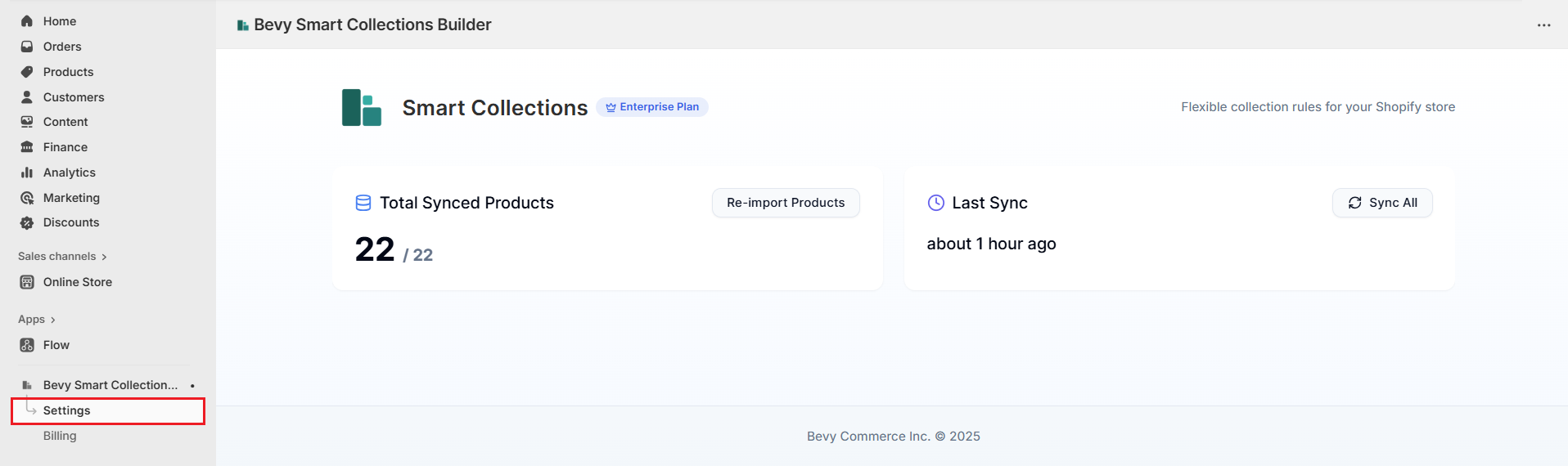
The Settings page gives you control over syncing between Smart Collections Builder and your Shopify store. While the app handles most syncing automatically, there are times when you might need to trigger a manual refresh.
To access these options, open the app and click on the Settings tab.
How Syncing Works?
Before diving into the manual options, here's how automatic syncing works:
Smart Collections Builder uses Shopify webhooks to detect product changes in real-time. When you add, edit, or remove products in Shopify, the app receives an instant notification and updates your collections accordingly.
- Sync speed: Real-time (event-driven, not scheduled)
- Processing rate: Up to 10 product events per second
- Applies to: Product data changes (not inventory quantity changes)
For most day-to-day operations, everything syncs automatically. The manual options below are for special situations.
Re-import Products
Smart Collections Builder automatically imports and syncs all products from your Shopify store. However, if you notice that products aren't appearing correctly—or if you've made bulk changes in Shopify—you can manually trigger a fresh import.
When to Use Re-import?
Consider using this option when:
- Products seem to be missing from collections
- You've recently done a bulk product upload or edit in Shopify
- Product data appears outdated in the app
- You've made changes to metafields or tags in bulk
How to Re-import Products?
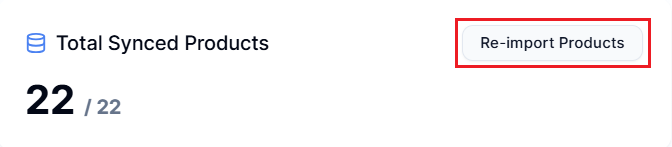
Step 1: Click the Re-import Products button.
Note: Re-importing temporarily pauses other actions in the app while products are being synced. For large catalogs, this may take several minutes.
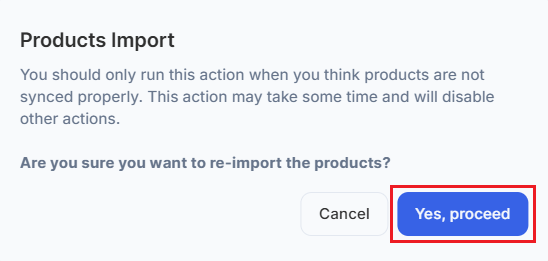
Step 2: A confirmation modal appears. Click Yes, proceed to start the bulk re-import.
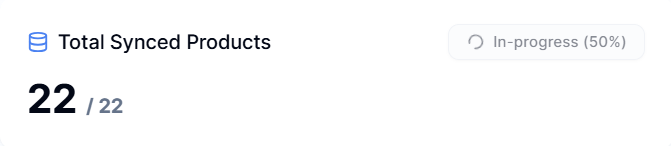
Step 3: Monitor the progress bar as products are re-imported.
Once complete, you'll see a success message, and your product data will be fully refreshed.
Sync All Collections
After re-importing products, you would want to re-sync all the collections with the newly updated product data. That's where the Sync All option comes in handy.
When to Use Sync All?
This is useful when:
- You've just completed a product re-import and want to refresh all collections
- You want to ensure all collections reflect the latest product data
- You're troubleshooting sync issues across collections
How to Sync All Collections?
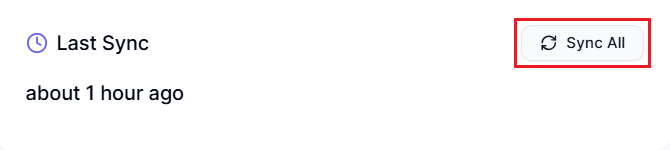
Step 1: Click the Sync All button.
Step 2: Watch the progress bar as collections sync.
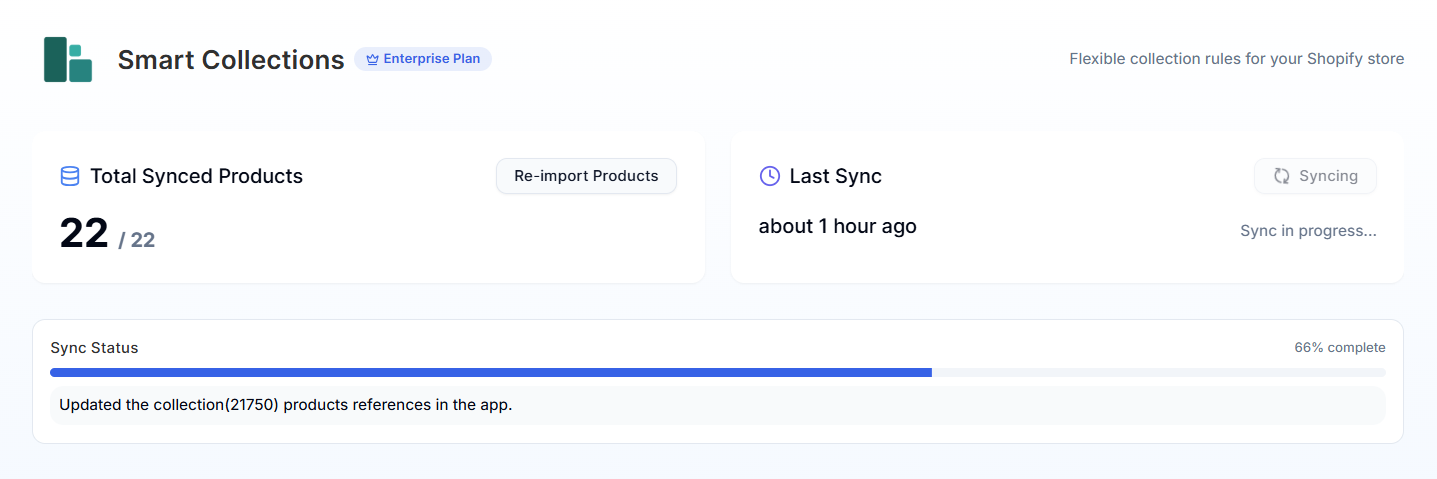
When syncing is complete, you'll see a success message. All your collections are now up-to-date with Shopify.
Automatic vs. Manual Syncing
Here's a quick comparison:
| Automatic Syncing | Manual Syncing |
|---|---|
| Happens in real-time via webhooks | Triggered by you on-demand |
| Detects individual product changes | Processes all products/collections at once |
| No action needed on your part | Useful after bulk operations |
| Handles day-to-day updates | Best for troubleshooting or major changes |
When Automatic Syncing is Enough?
- Adding or editing individual products
- Normal daily store operations
- Small batches of product updates
When to Use Manual Options?
- When collections seem out of sync
- After bulk importing products via CSV
- After mass-editing tags or metafields
- After making many collection rule changes
Bulk Updates & Processing Time
If you're doing a large bulk update (like importing 10,000 products at once), here's what to expect:
- The app processes 10 product events per second
- A 100-product bulk update takes about 10 seconds
- A 1,000-product bulk update takes about 100 seconds (under 2 minutes)
For very large operations, consider using Re-import Products after the bulk update completes to ensure everything is in sync. This would be faster because you wouldn't have to wait for Shopify webhooks to be processed.
Need Help?
Having sync issues or questions about the settings? We're here to help! Contact us via live chat or email at support@bevycommerce.com.