Dashboard Overview
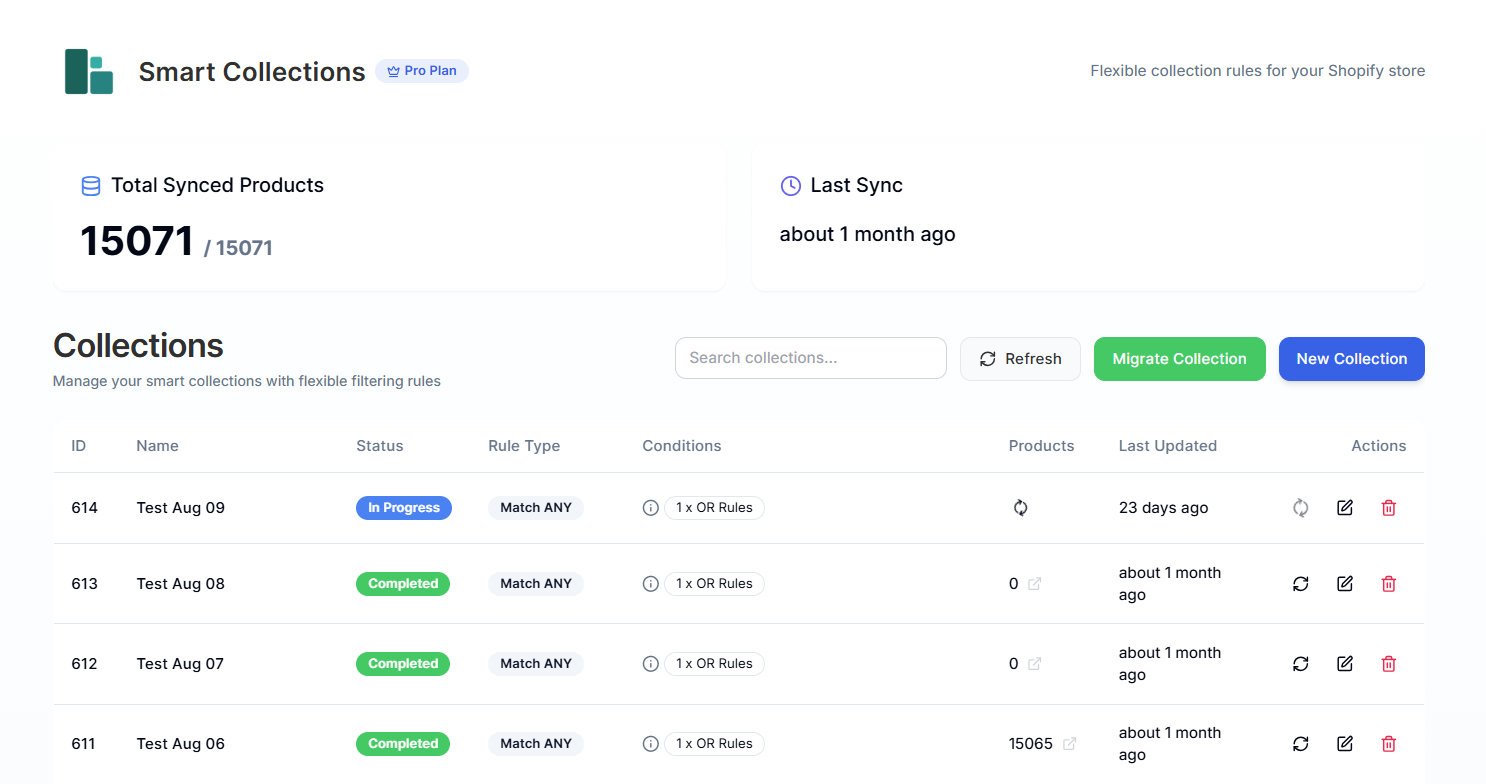
The Smart Collections Builder dashboard is your command center for managing collections. It's designed to be intuitive and easy to navigate, giving you complete visibility into your collections and their sync status at a glance.
Getting Oriented
When you first open the app, the dashboard shows you everything you need to know about your collections. Let's walk through each section.
Analytics – Sync Status
At the top of the dashboard, you'll see key information about your data sync with Shopify:
-
Total Synced Products: This shows how many products from your store have been imported into the app. If this number seems off, you can trigger a re-import from the Settings page.
-
Last Sync: This tells you when your collections were last synced with Shopify. Smart Collections Builder syncs automatically, but it's helpful to know when the last update occurred.
Collections Table
The heart of the dashboard is the Collections table, which gives you an overview of all the collections you're managing. Here's what each column tells you:
| Column | What It Shows |
|---|---|
| ID | A unique number assigned to each collection automatically |
| Name | The collection name you set during creation |
| Status | Current state: Completed, In Progress, Failed, or Deleted |
| Rule Type | The logic used: Match All, Match Any, or Combination |
| Conditions | The rules applied to the collection |
| Products | Number of products in the collection |
| Last Updated | When the collection was last synced |
| Actions | Quick access to Resync, Edit, or Delete |
Pro Tip 1: Hover over the Conditions column to see the full details of the rules applied to a collection. This is handy when you have complex rule combinations.
Pro Tip 2: Click the arrow icon next to the product count in the Products column to jump directly to that collection in your Shopify admin.
Search Collections
Have a lot of collections? No problem. Use the Search collections input box to find any collection by name quickly. Just start typing, and the table filters in real-time.
Refresh
If you've made changes elsewhere or want to make sure you're seeing the latest data, click the Refresh button to reload all collection information in the table. This isn't necessary in general—our app syncs changes automatically. Only do this if you find any discrepancy.
Migrate Collection
Already have smart collections set up in Shopify? The Migrate Collection button lets you import them into Smart Collections Builder so you can make the most of our advanced features without starting from scratch.
This is especially useful if you're:
- Switching from Shopify's built-in smart collections.
- Want to add more complex rules to existing collections.
- Looking to manage all your collections from one place.
For step-by-step instructions, check out our Migrate Collections article.
New Collection
Ready to create something new? Click the New Collection button to start building a collection with our advanced rule system.
For a detailed walkthrough of the creation process, see Create Collections.
Understanding Collection Statuses
Here's what each status means:
- Completed: The collection is fully synced and up-to-date.
- In Progress: The collection is currently being created or synced (this may take a few minutes for large catalogs).
- Failed: Something went wrong during creation or sync (contact support if this persists).
- Deleted: The collection has been removed.
What's Next?
Now that you know your way around the dashboard, here are some next steps:
Have questions about the dashboard? We're here to help! Reach out via live chat or email us at support@bevycommerce.com.