Migrate Collections
Already have smart collections set up in Shopify? Great news—you don't have to start from scratch! Smart Collections Builder can import your existing collections, bringing over all the details so you can enhance them with advanced features.
Why Migrate?
Migrating gives you the best of both worlds:
- Keep what you've built: All the work you've put into your Shopify collections transfers over.
- Unlock advanced features: Add complex AND/OR logic, better Metafield filtering, and more.
- Manage everything in one place: See and control all collections from the Smart Collections Builder dashboard.
What Gets Migrated?
When you migrate a collection, the app imports:
- Collection name
- Description
- Collection Image
- Rule type (Match All or Match Any)
- Existing rules and conditions
- Existing Sales Channel
You can then edit any of these using Smart Collections Builder's advanced options.
How to Migrate a Collection?
Step 1: From the dashboard, click Migrate Collection.
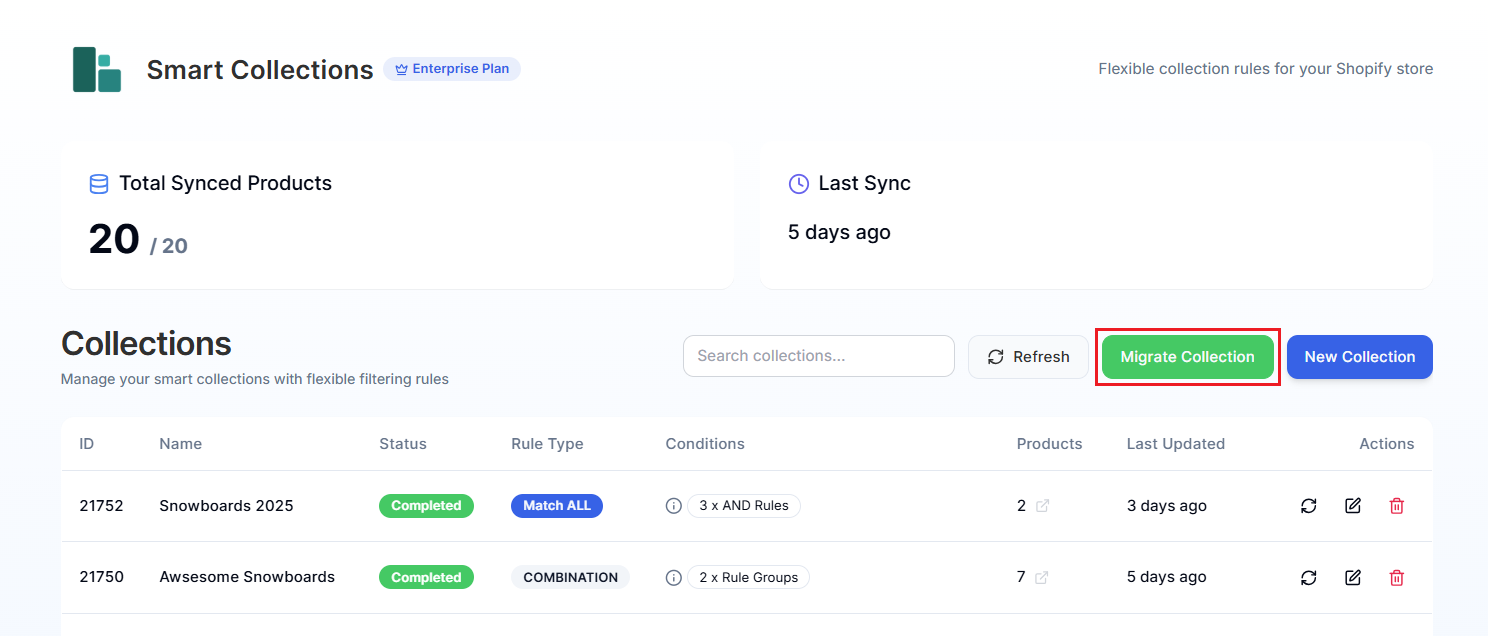
This opens the migration page.
Step 2: Click the Select a Collection to Migrate dropdown.
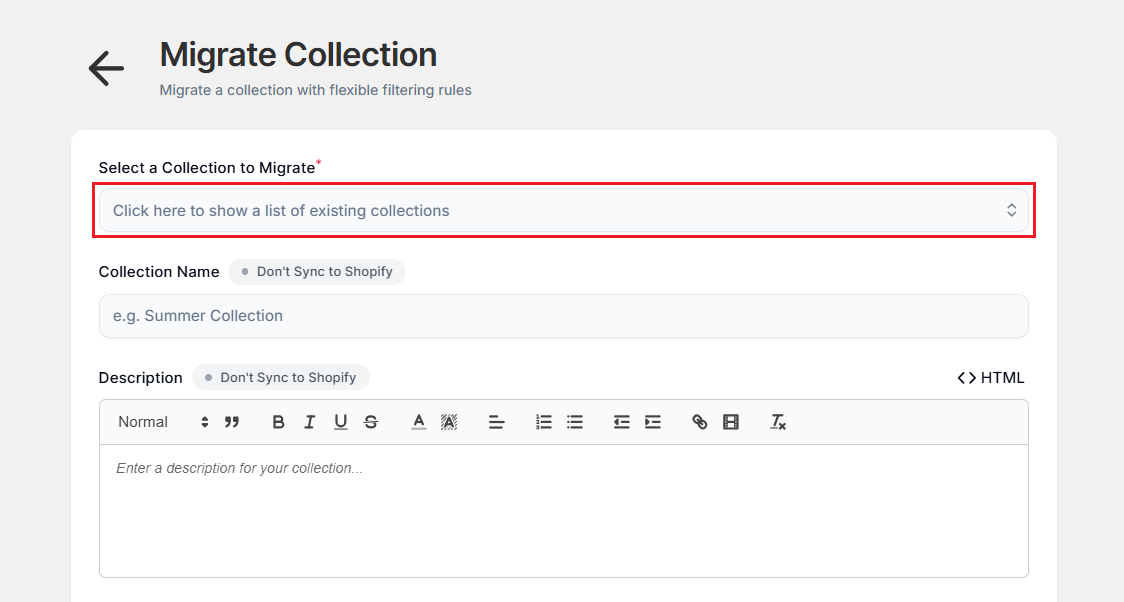
A modal appears showing all your Shopify smart collections.
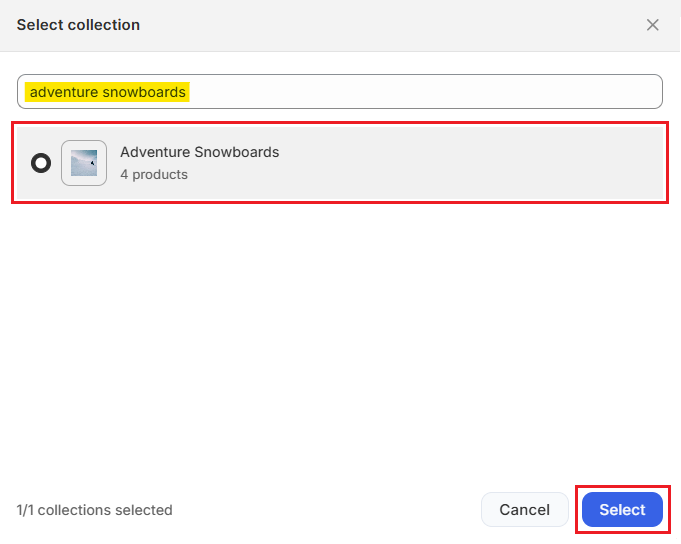
Step 3: Find and select the collection you want to migrate, then click Select.
Pro Tip: Use the search box to quickly find a collection by name if you have a lot of them.
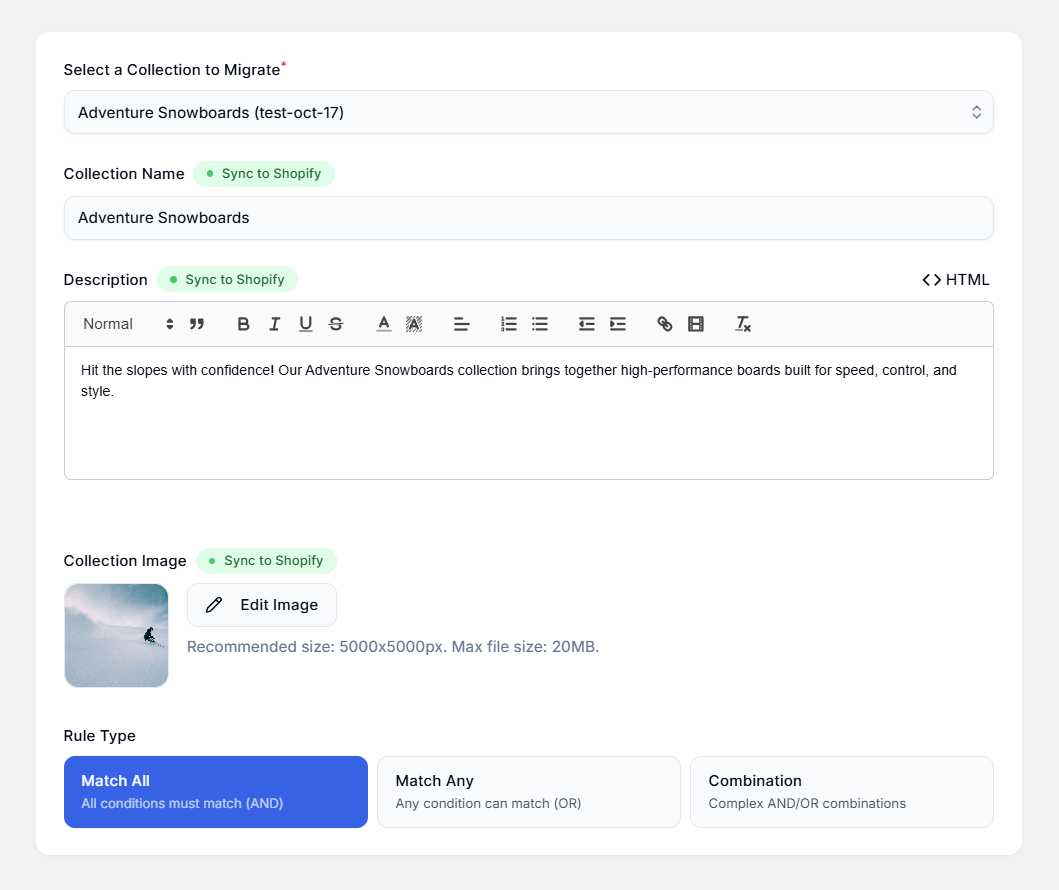
After you select a collection, the app automatically fills in all the details from Shopify:
- Collection Name
- Description
- Collection Image
- Rule Type
- Rules
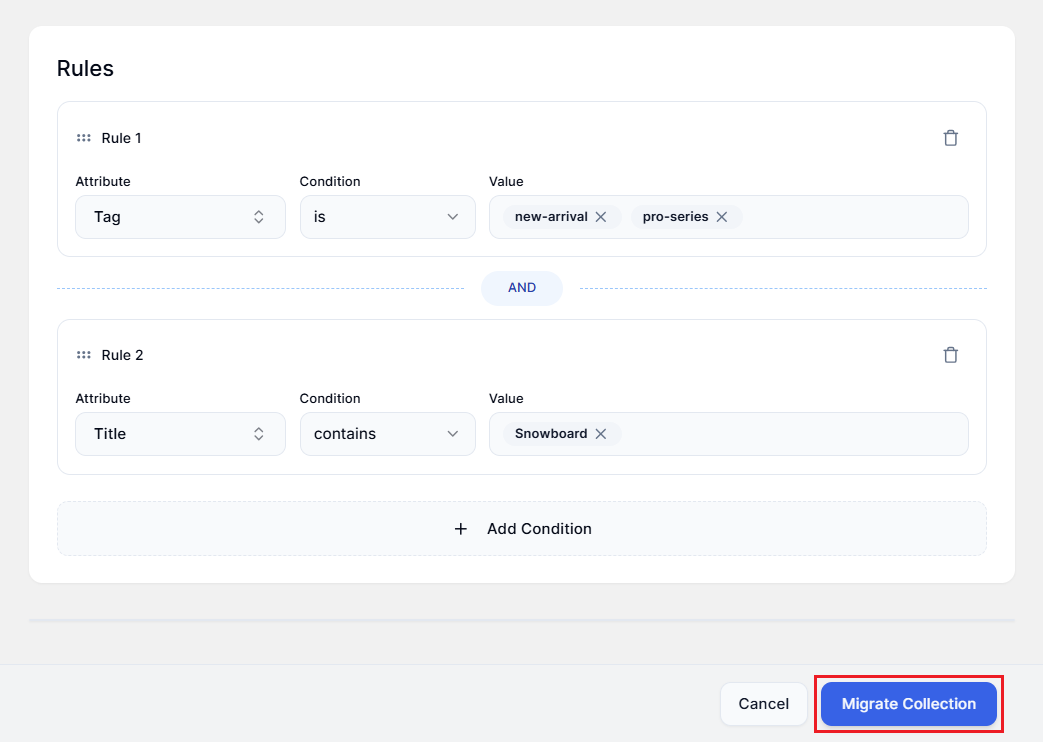
Step 4: Review the imported details and make any changes you want.
This is a great opportunity to:
- Update the description for a fresh look.
- Add additional rules using our advanced conditions.
- Switch to Combination logic for more complex filtering.
Syncing Tip: If you edit the name, description, or image and want those changes reflected in Shopify, toggle Don't Sync to Shopify to Sync to Shopify for each field.
Step 5: When everything looks good, click Migrate Collection.
After Migration
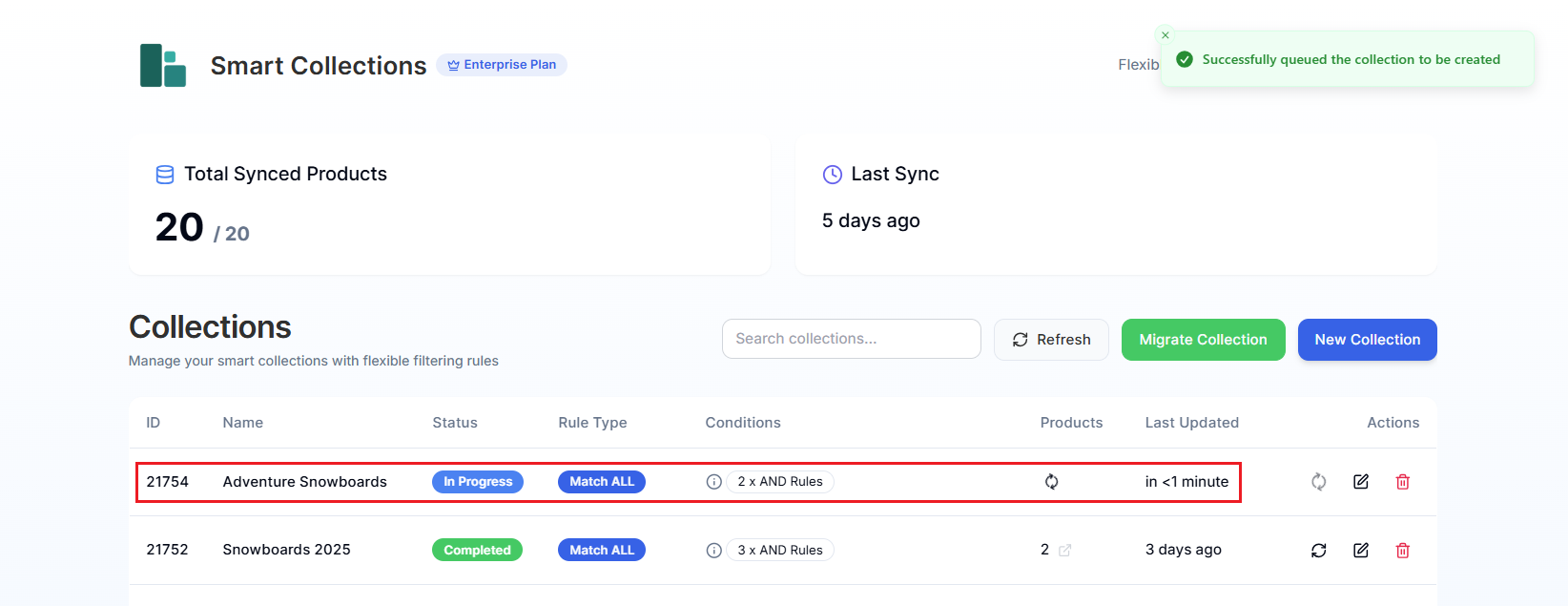
You're returned to the dashboard, where you can watch the migration progress:
- Status shows as In Progress while products are synced.
- This may take a few minutes, depending on the collection size.
- Once finished, the status changes to Completed.
Important Things to Know
The Original Shopify Collection is Replaced
Once migrated, the collection is now managed by Smart Collections Builder. Any future edits should be made in the app.
Products Stay the Same Initially
The same products will be in the collection right after the migration. Changes only happen if you edit the rules.
You Can Migrate Multiple Collections
Repeat this process for each collection you want to bring over.
Can't Find a Collection?
The migration modal only shows smart collections from Shopify—not manual collections. If you don't see a collection:
- Make sure it's a smart collection (has automated rules).
- Check that it hasn't already been migrated.
- Try refreshing the page.
Need help with migration? We're here for you! Reach out via live chat or email us at support@bevycommerce.com.