View Collection Products
Want to see exactly which products are in a collection? Smart Collections Builder makes it easy to jump directly to your Shopify admin and view all the products that match your rules.
How It Works?
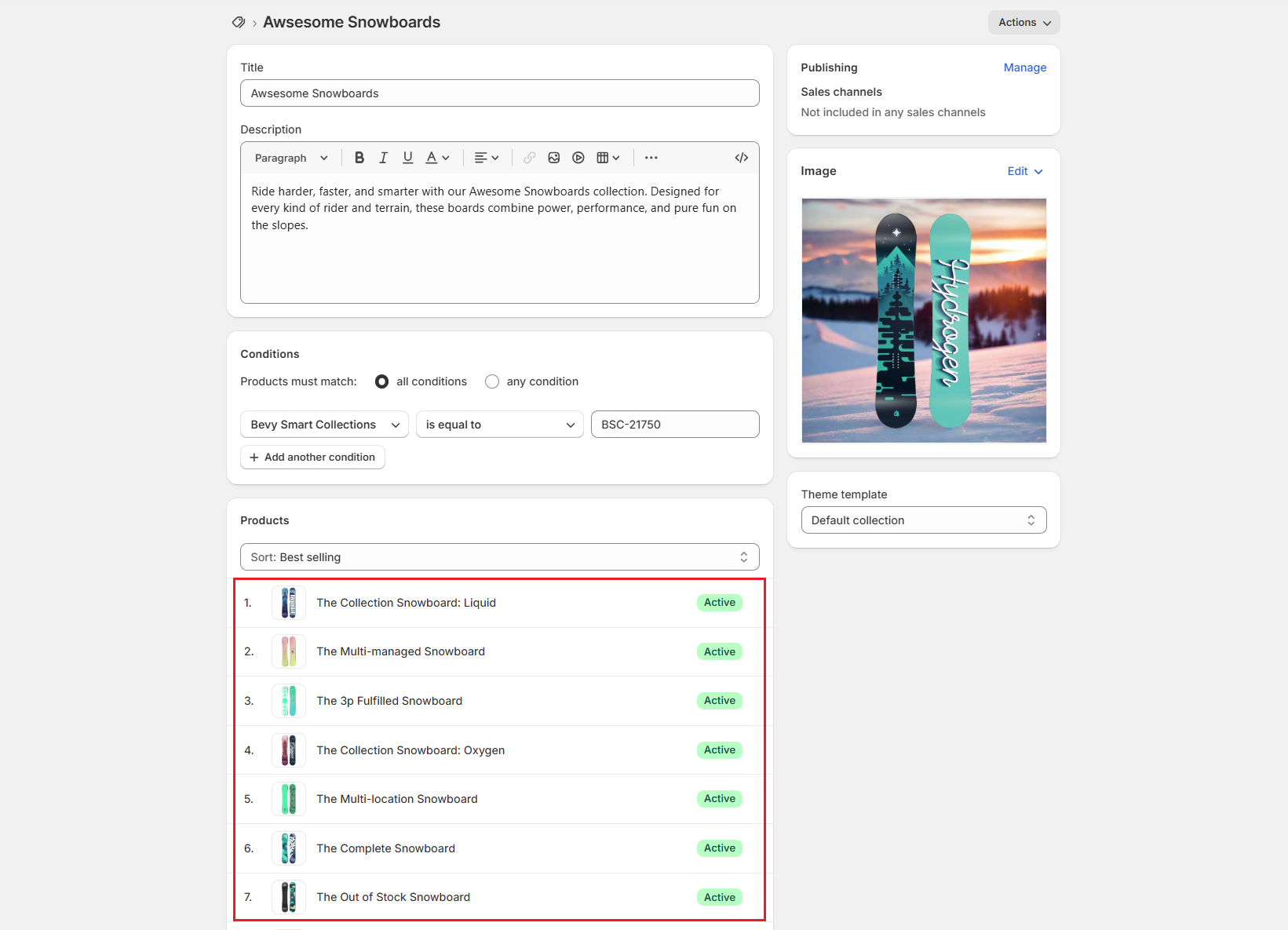
When you create a collection in Smart Collections Builder, the app also creates it in Shopify. Each collection uses a smart rule to identify which products belong to it:
- Attribute: Tag
- Condition: is equal to
- Value: BSC-[ID number] (e.g., BSC-21758)
The number corresponds to the Collection ID you see in your Smart Collections Builder dashboard. This is how Shopify knows which products to include based on your rules.
How to View Collection Products?
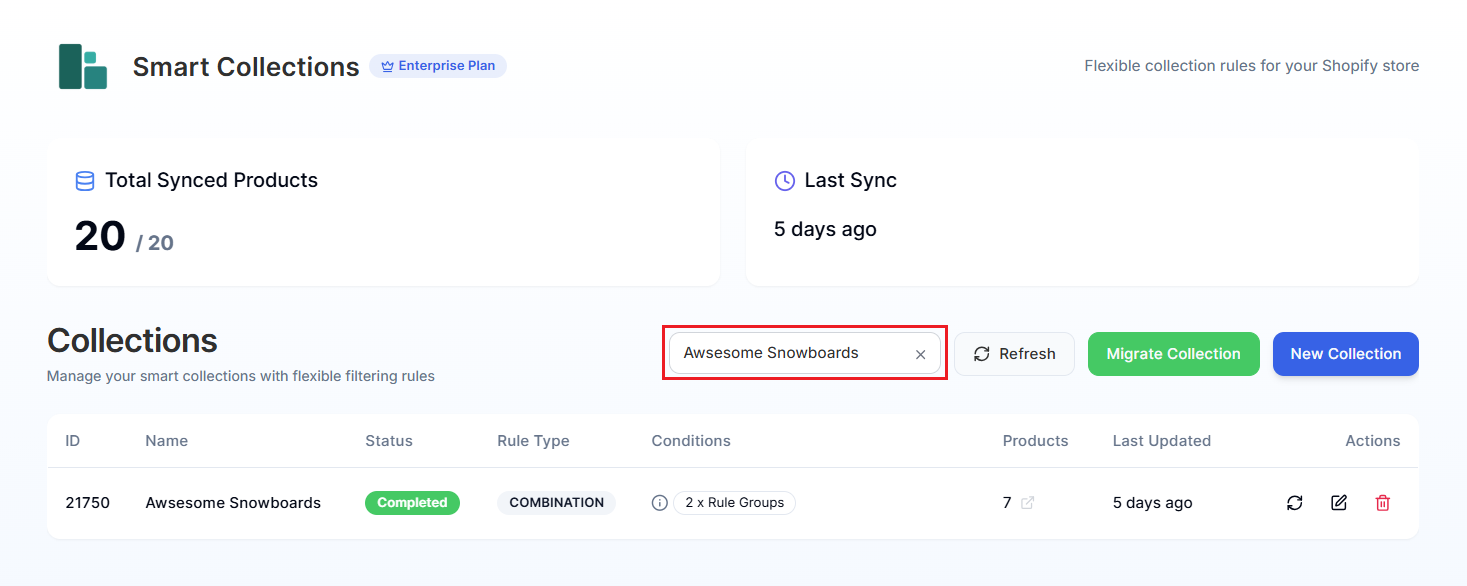
Step 1: On the app dashboard, find the collection you want to view in the table.
Pro Tip: Use the Search collections box to quickly find it by name.
Step 2: Look at the Products column—this shows how many products are currently in the collection.
Step 3: Click the arrow icon next to the product count.
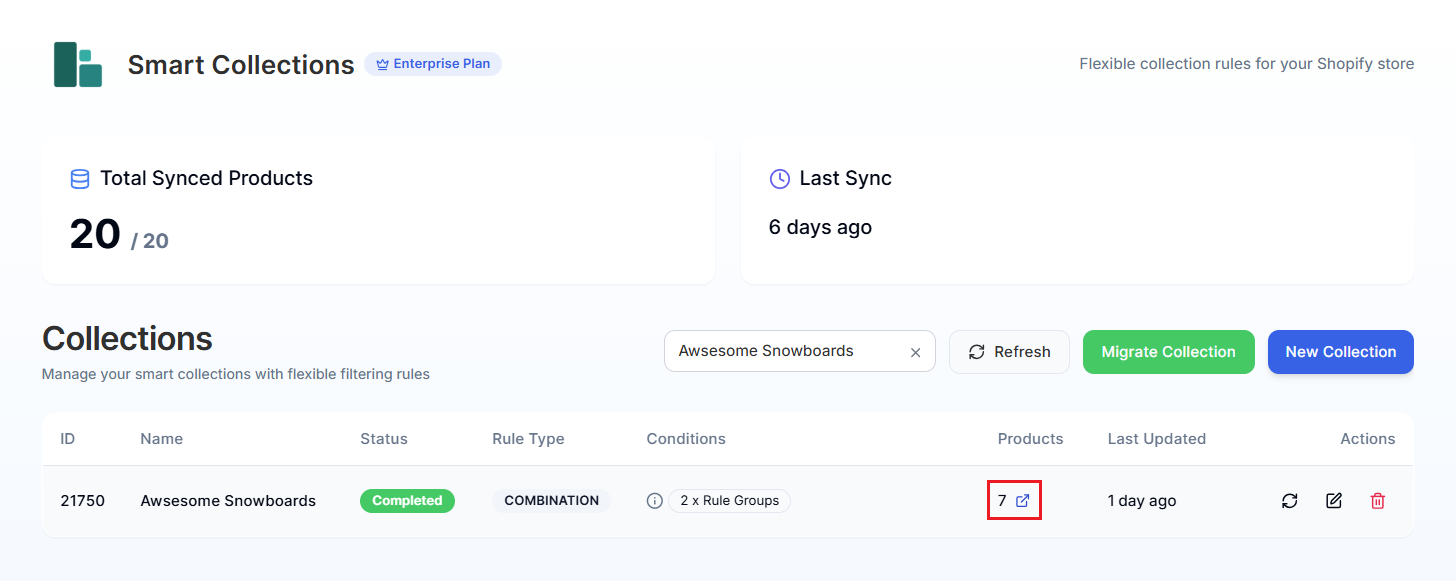
This opens the collection directly in your Shopify admin, where you can see all the products that match your rules.
What You Can Do in Shopify Admin?
Once you're viewing the collection in Shopify, you can:
- Browse all included products: See the complete list of items.
- Check product details: Click on any product to view its full information.
- Verify the collection looks right: Make sure your rules are working as expected.
- Share the collection URL: Copy the link to preview it on your storefront.
Missing, Extra, or Incorrect Products?
If the collection doesn't look quite right, here are some things to check:
Not Enough Products?
- Review your rules: Maybe the conditions are too restrictive.
- Check product data: Make sure products have the right tags, metafields, or attributes.
- Trigger a resync: Use the Resync option to refresh the collection.
Too Many Products?
- Tighten your rules: Add more conditions or switch to "Match All" logic.
- Check for broad matches: "Contains" conditions might be matching more than expected.
Wrong Products?
- Verify attribute values: Make sure you're filtering on the correct data.
- Double-check conditions: "Is" vs "Contains" can give very different results.
To make changes, head back to Smart Collections Builder and edit the collection.
Note: After editing collection rules, Smart Collections Builder automatically syncs the changes with Shopify. Give it a minute, then recheck the collection.
Understanding Product Counts
The product count shown in your dashboard should match what you see in Shopify. If there's a discrepancy:
- Wait a few minutes for syncing to complete.
- Click Refresh on the dashboard.
- If it still doesn't match, try resyncing the collection.
Have questions about viewing products? We're here to help! Reach out via live chat or email us at support@bevycommerce.com.