Resync Collections
Smart Collections Builder automatically keeps your collections in sync with Shopify, but sometimes you might want to trigger a manual refresh. The Resync option lets you do exactly that—quickly update a collection with the latest product data.
When to Resync?
While automatic syncing handles most situations, here are times when a manual resync is helpful:
After Bulk Product Updates
You've just edited Tags, Metafields, Titles, or Prices for many products in Shopify.
After Adding New Inventory
You've uploaded a batch of new products.
When Products Seem Outdated
A collection doesn't look quite right, and you want to refresh it.
Before a Big Launch
You want to make sure everything is 100% accurate before going live.
Troubleshooting
Something seems off, and you want to rule out sync issues.
How to Resync a Collection?
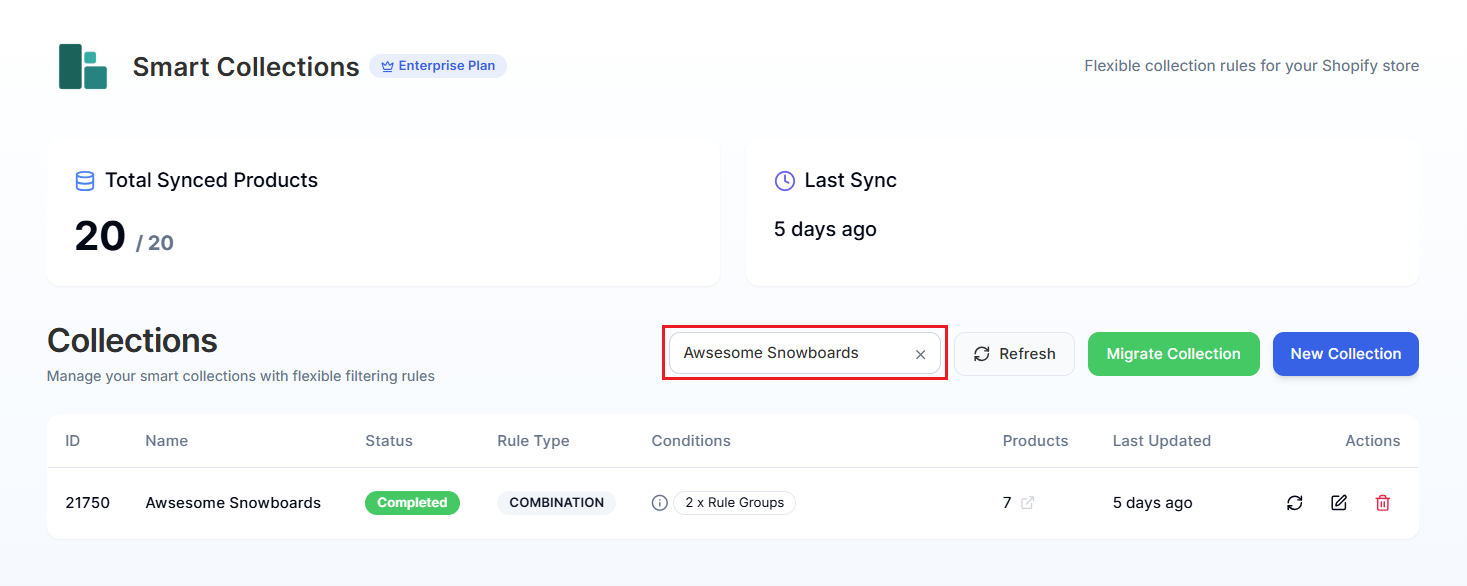
Step 1: On the app dashboard, find the collection you want to resync in the table.
Pro Tip: Use the Search collections box to quickly find it by name.
Step 2: Click the Resync icon (circular arrows) in the Actions column.
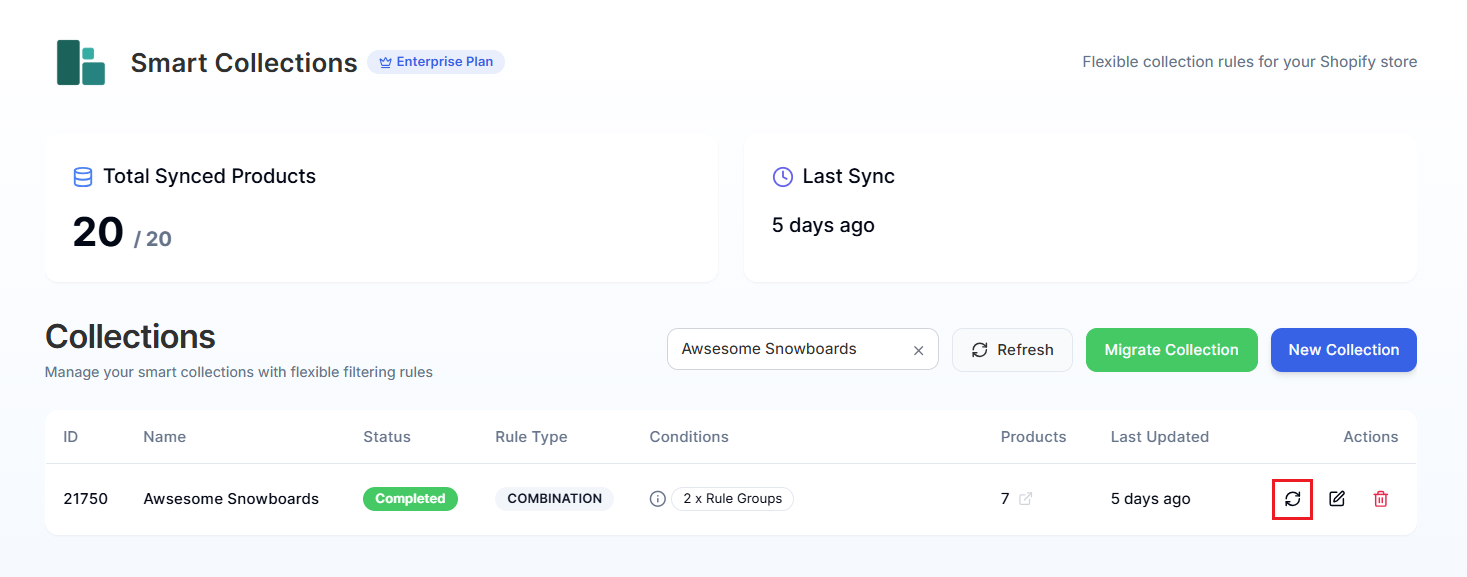
That's it! The app immediately starts refreshing the collection—re-evaluating all products against your rules using the latest Shopify data.
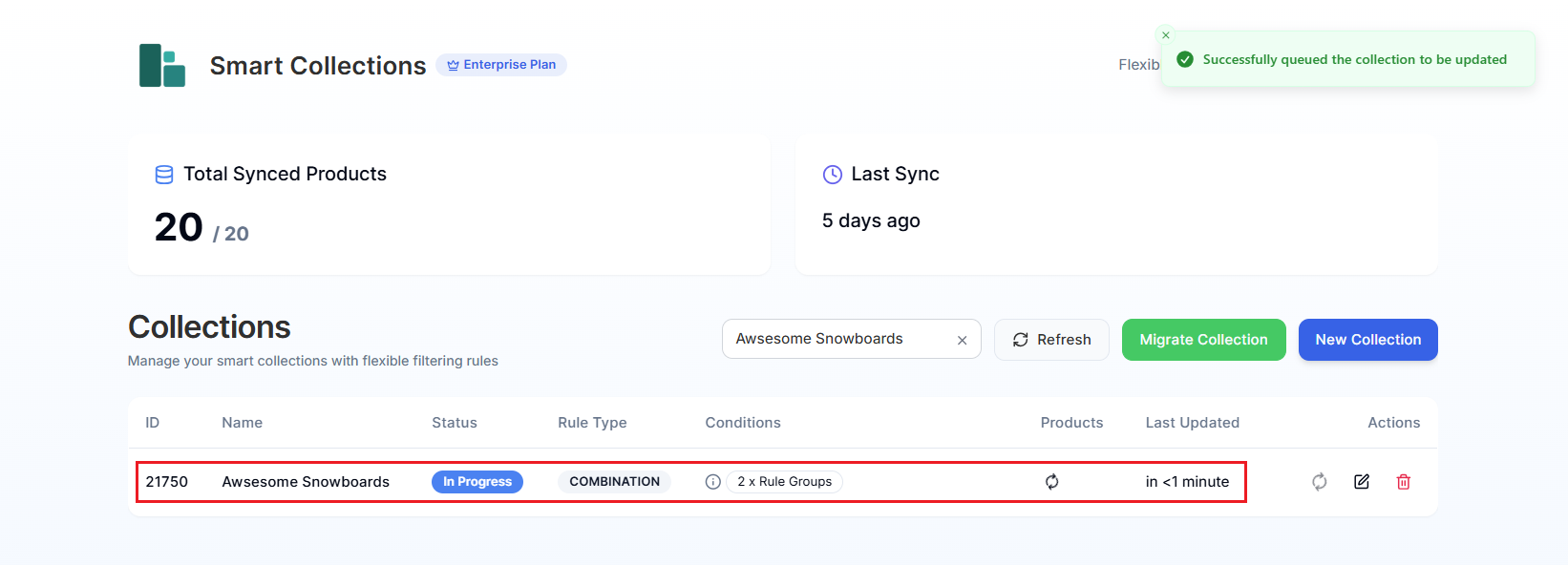
Step 3: Watch the status in the dashboard:
- In Progress: The collection is being updated.
- Completed: The resync is finished, and the collection is up to date.
What Happens During a Resync?
When you resync a collection, the app:
- Pulls the latest product data from Shopify.
- Re-applies all your collection rules.
- Adds any products that now match those rules.
- Removes any products that no longer match.
- Updates the product count in the dashboard.
The collection in your Shopify store updates automatically once the resync completes.
Resync vs. Sync All
What's the difference?
- Resync (this page): Updates a single collection.
- Sync All (in Settings): Updates ALL collections at once.
If you only need to refresh one collection, Resync is faster. If you've made changes that might affect multiple collections, Sync All is the way to go.
How Long Does Resyncing Take?
It depends on your catalog size:
- Small Collections (under 100 products): Usually just a few seconds.
- Medium Collections (100 - 1,000 products): About 1–2 minutes.
- Large Collections (1,000+ products): May take several minutes.
You can continue using the app while the resync runs in the background.
Have questions about syncing? We're here to help! Reach out via live chat or email us at support@bevycommerce.com.