Rich Text Editor
First impressions matter—and collection descriptions are often the first thing customers see when browsing your store. Smart Collections Builder includes a Rich Text Editor that makes it easy to create beautiful, well-formatted descriptions that stand out.
Where Is the Rich Text Editor?
The Rich Text Editor appears in the Description field when you create or edit a collection. It's a WYSIWYG (What You See Is What You Get) editor, meaning you can see exactly how your formatting will look as you type.
Formatting Options
The editor toolbar gives you plenty of ways to style your descriptions:
Headings & Text Structure
| Option | What It Does |
|---|---|
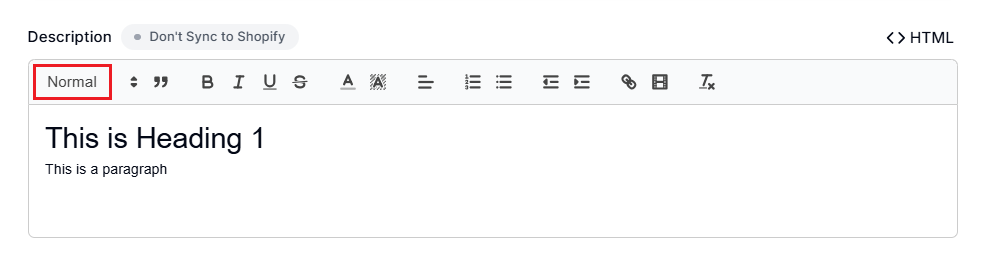
| Heading 1–6 | Creates headings of different sizes |
| Normal | Standard paragraph text |
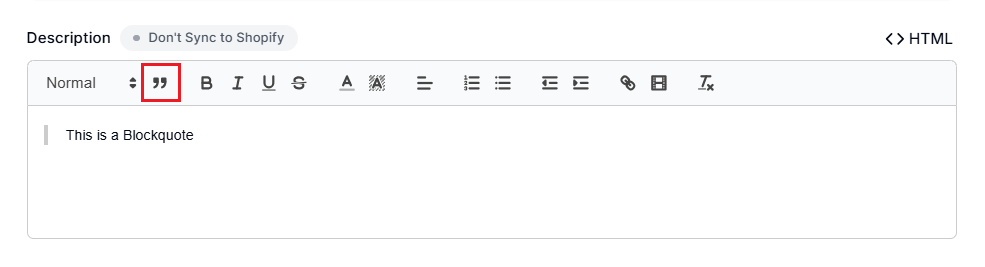
| Blockquote | Indented quote styling |
Text Formatting
| Option | What It Does |
|---|---|
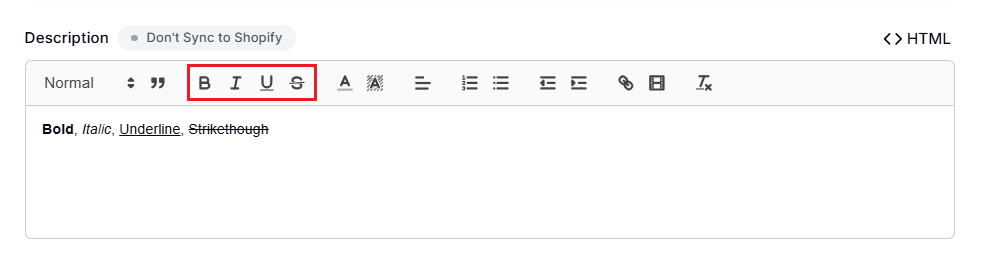
| Bold | Makes text stand out |
| Italic | Adds emphasis or style |
| Underline | Draws attention to text |
| Shows edited or outdated text |
Color Options
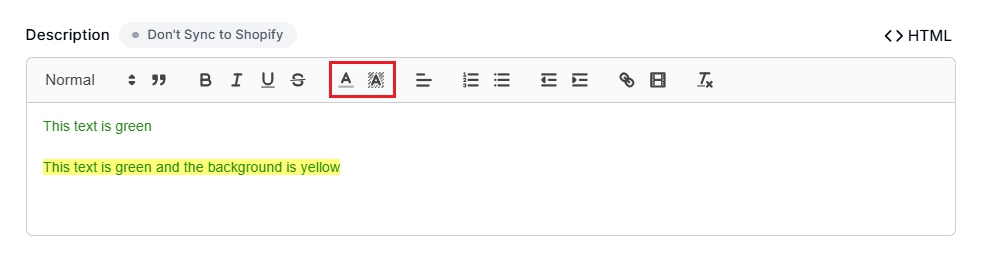
- Text Color: Change the color of your text.
- Background Color: Add a highlight behind text.
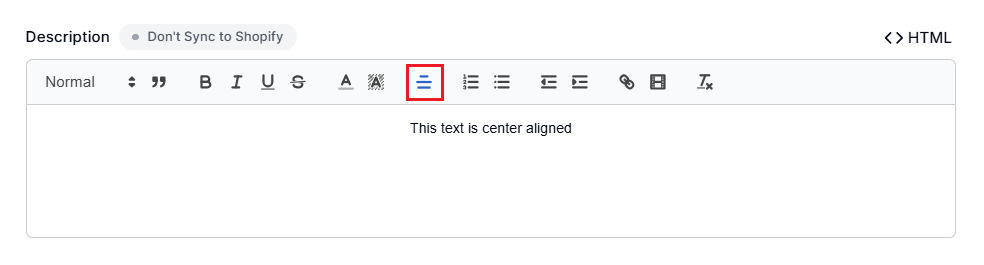
Text Alignment
Choose how text aligns on the page:
- Left (default)
- Center
- Right
- Justify (even spacing)
Lists
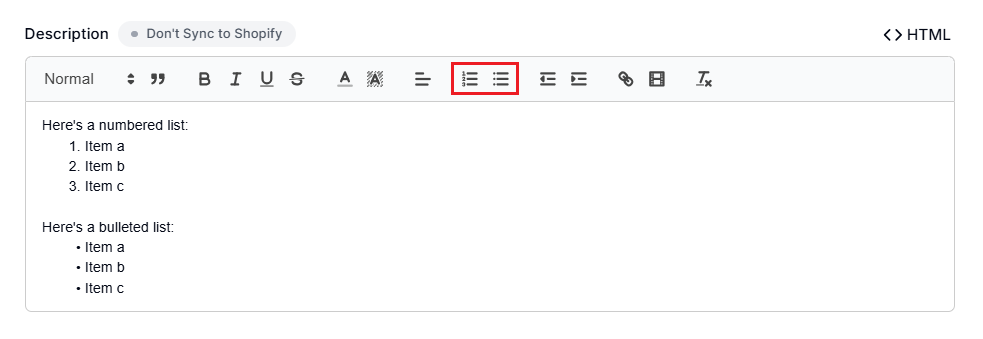
- Numbered List: Create ordered steps or rankings (1, 2, 3...).
- Bulleted List: Create unordered lists with bullet points.
Indentation
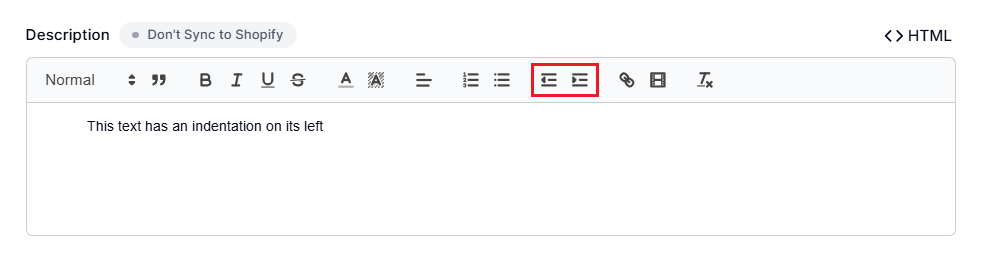
- Decrease Indent: Move content left.
- Increase Indent: Move content right.
These are useful for creating a visual hierarchy in your descriptions.
Links
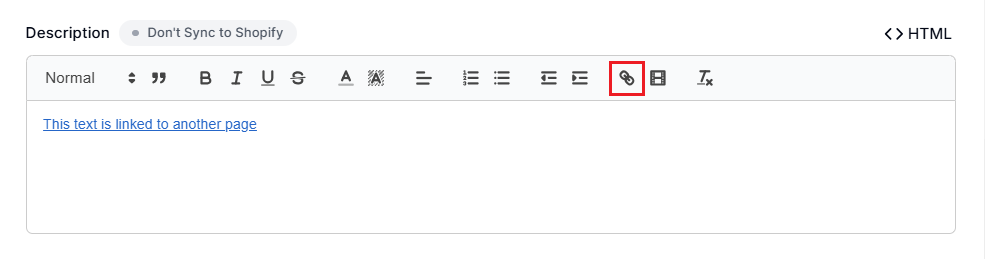
Add clickable links to:
- Other pages on your store
- Specific products
- External websites
Just highlight the text you want to link, click the link button, and enter the URL.
Video Embeds
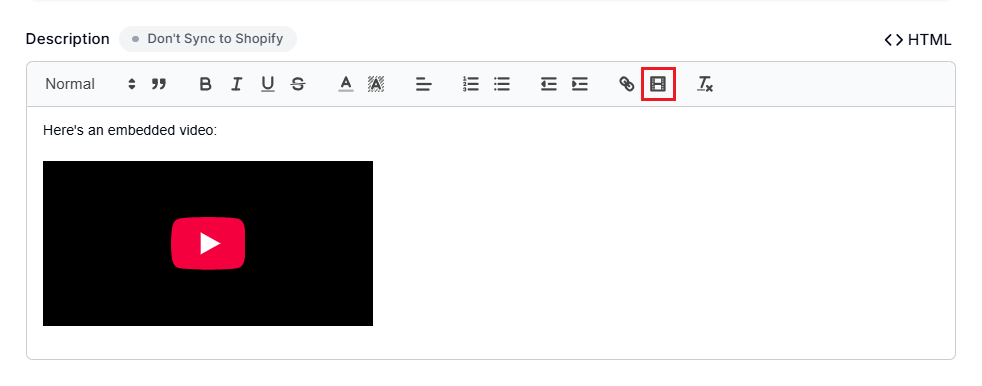
Want to add a product video or explainer? You can embed videos by pasting a URL from YouTube, Vimeo, or other video platforms.
Clear Formatting
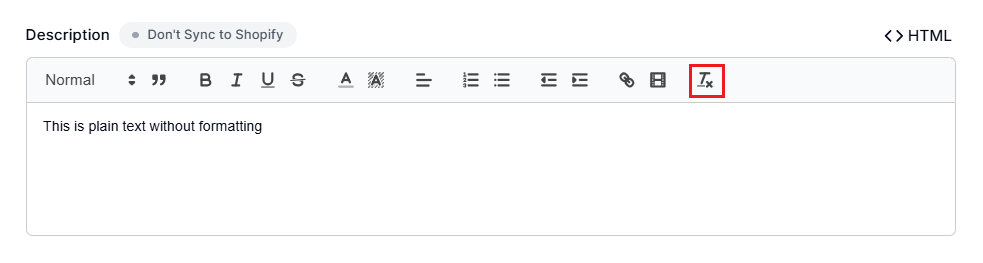
Made a mess? No worries! The clear formatting button removes all styling and returns text to plain format so you can start fresh.
HTML Editor Mode
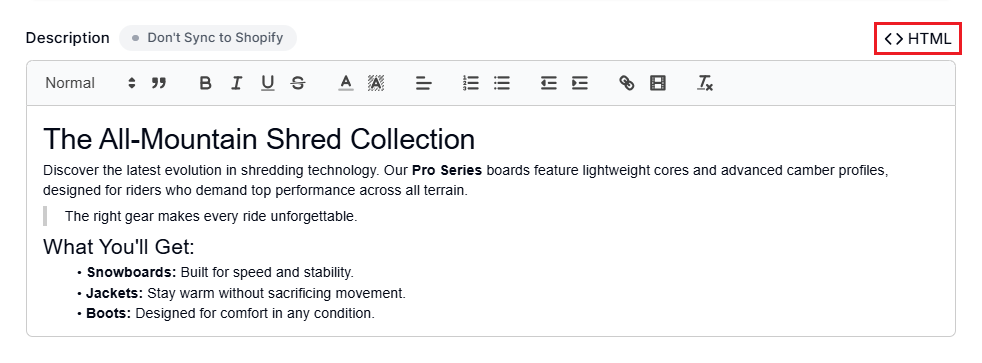
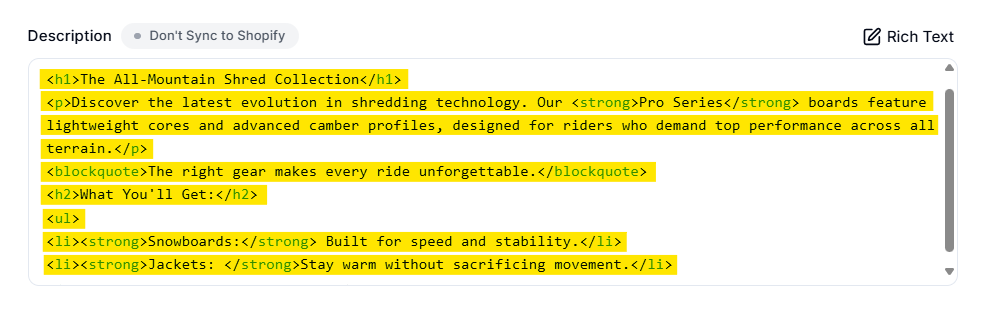
For those comfortable with code, you can switch to HTML mode for complete control over the markup.
Click <HTML> in the toolbar to toggle between visual and code views.
In HTML mode, you can:
- Write raw HTML directly.
- Add custom styling.
- Include advanced elements not available in the visual editor.
- Fix any formatting issues at the code level.
Tips for Great Collection Descriptions
Keep It Scannable
Use headings, bullet points, and short paragraphs. Customers often skim rather than read every word.
Highlight Key Info
Use bold or color to draw attention to important details like materials, benefits, or special features.
Add Context
Help customers understand what makes this collection special. Why are these products grouped together?
Include a Call to Action
Encourage customers to browse, compare, or purchase with phrases like "Explore our selection" or "Find your perfect match."
Be Consistent
Use similar formatting across collections for a professional, cohesive look.
Syncing Descriptions to Shopify
Remember: By default, descriptions stay within Smart Collections Builder. If you want your formatted description to appear in your Shopify admin (and on your storefront), make sure to enable Sync to Shopify for the Description field.
Have questions about the editor? We're here to help! Reach out via live chat or email us at support@bevycommerce.com.